
During the third-party software check stage, a student may report being unable to pass the check. They click the "X" button, but the software indicates it cannot close the process automatically and instructs them to exit the system and close it manually.
TABLE OF CONTENTS
- How do we know what appears on the student's screen?
- Workaround: Disabling the Process Check
- What if you get stuck? (Complete Disable)
- Disable specific processes check for all students
 How do we know what appears on the student's screen?
We can connect to the Integrity Report and view their screenshots. These are already being sent at this stage, though there may be a gap of about 30 seconds to a minute between what appears in the screenshot and what is actually happening in real time.
- 1Locate the student in the participants table.
- 2Hover over the Participant ID, a "Student Panel" button will appear.
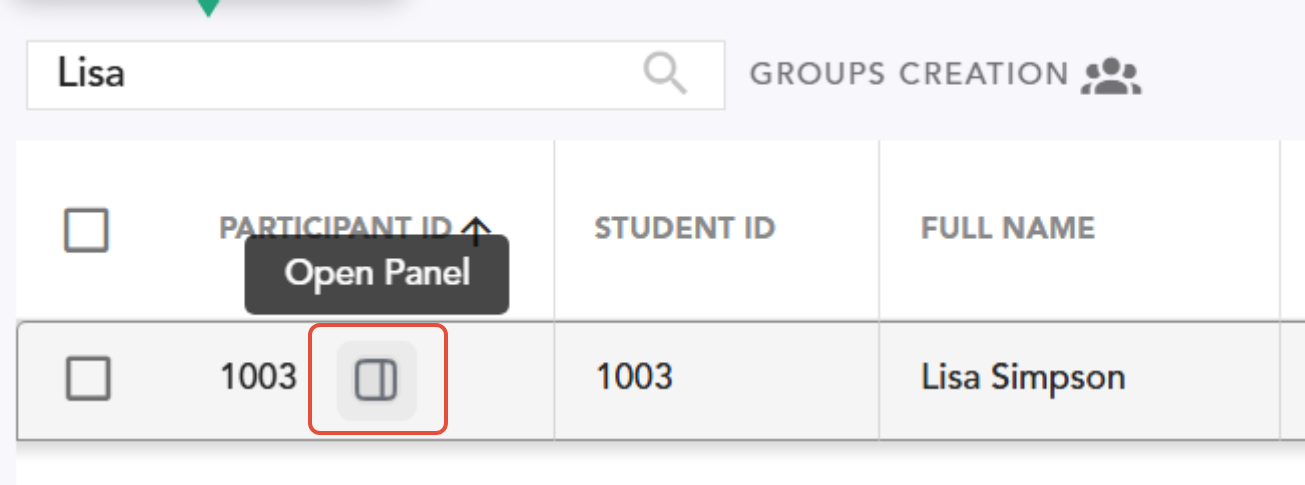
- 3Click it to open the Student Panel.
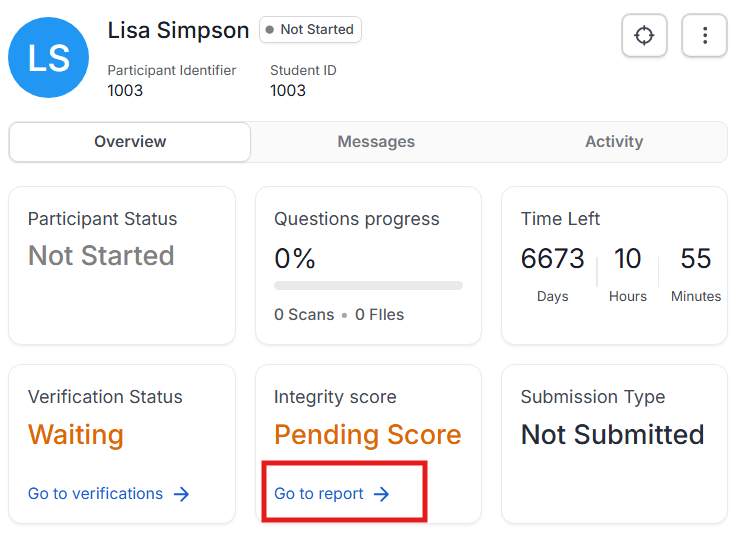
- 4Under "Integrity Score," click "Go to Report."
- 5There, in the screenshots, you can see exactly the message the student is receiving, including the application and process names that need to be closed.
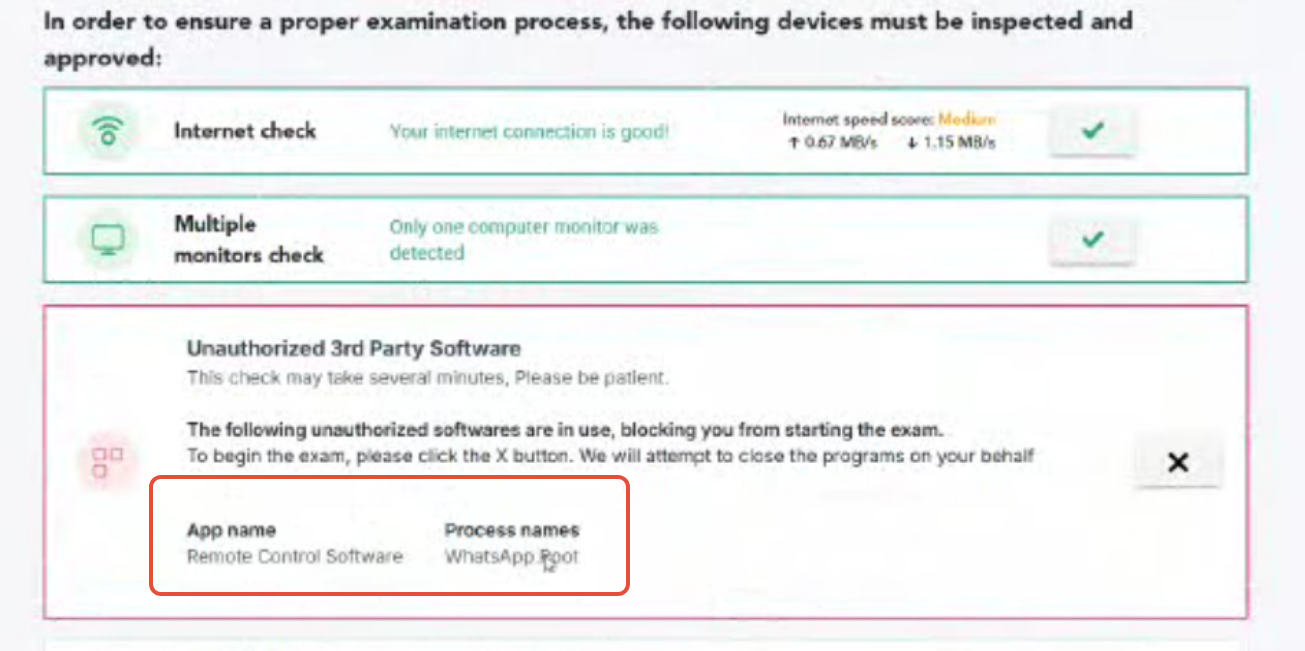

Why does this happen? If the system is unable to close the process automatically, this means the operating system is not allowing it to close the software in the background.
The student needs to exit, open Task Manager, and close the software manually or, on a Mac, open the Activity Monitor or use the Force Quit menu to find and close the process manually.
Workaround: Disabling the Process Check
If you want to disable the process check to let the student proceed anyway:
- 1Select the student (checkbox) — the green action bar will appear.

- 2Click "Blocked Processes" and search for the process or application name shown to the student (visible in the screenshots as explained above), or ask the student to send you the name(s) in a message.
- 3Click "Allowed" next to the relevant processes in the search results (you can also search by partial name).
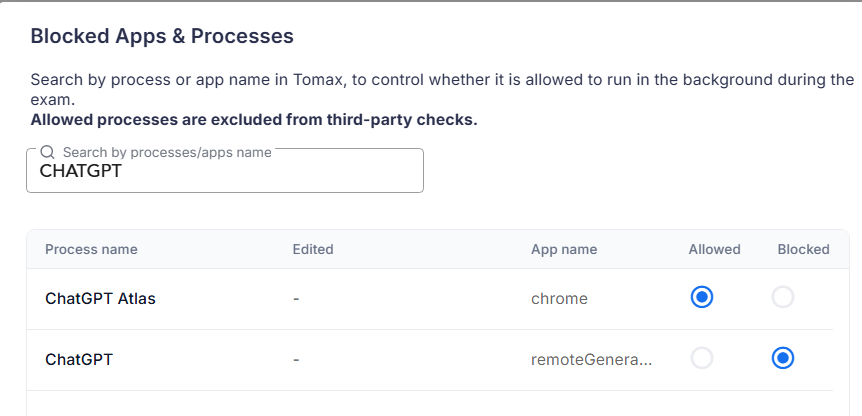
- 4Click "Apply" to save.
* Tip: You can also do this from within the Student Panel (explained above): scroll down, and under "Security," click "Blocked Processes," then follow the same steps described.
 What if you get stuck? (Complete Disable)
If you get stuck — for example, you can't find the exact name, or you're unsure — you can also disable the third-party software check entirely.
From the same green bar, select "Disabled Hardware Checks," uncheck “None disabled”, check "3rd Party Programs," and confirm.
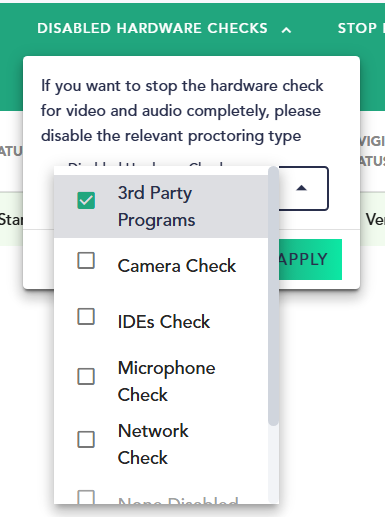

Note: This disables all background software checks.
Disable specific processes check for all students
If you would like to disable specific process monitoring for all students in the exam, you can do so from the "Exam Info" tab, under the "Settings" section. Scroll down to "Blocked apps & Processes" and click the pencil icon to make changes.