
Importing grades from an Excel file allows you to merge grades awarded outside the system directly into Tomagrade seamlessly.
Example Use Cases
1. Mixed Question Exams
For exams containing both closed and open-ended questions, where closed questions are graded externally. You can grade the open questions in Tomagrade and import the grades for the closed ones. Once grading is complete, the full final grades are transmitted to the institution's system.
2. Excel File Questions
For online exams containing Excel-based questions (e.g., Accounting exams). You can review and grade the questions externally in Excel, and subsequently upload the grades to publish the final grades.
Guidelines & Prerequisites
Important!
Before you begin, please note:
- Scanned Exams or Assignments: Ensure you have created a grading scheme (exam structure) in advance.
- Booklet Status: Grades can only be imported for exam booklets in the "In check" status (see the detailed explanation in the final section).
To begin the process, click on "More" from the main screen:

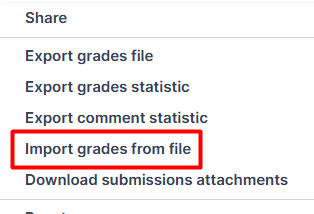
Later, select "Import grades from file":
A new window will open with the following options:
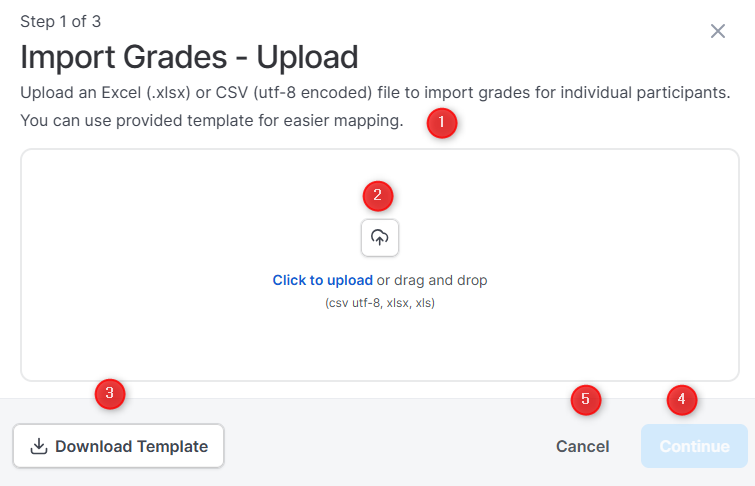
It is highly recommended to download the template to ensure your file perfectly matches the required upload format.After clicking "Continue," you will reach the Column Mapping stage. Here, you must map the grades from your file to the corresponding columns (questions) in the exam.
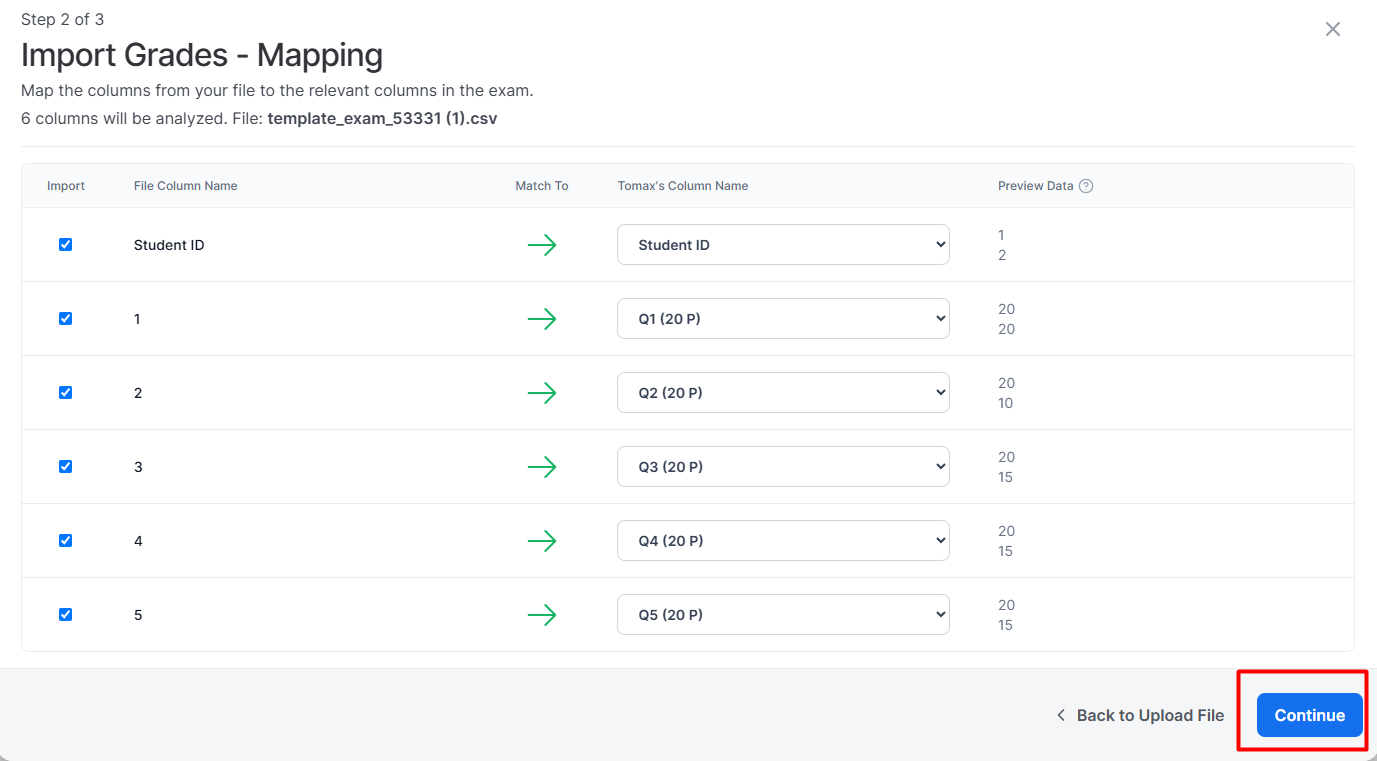

Please Note: You cannot import grades for questions that are graded automatically (such as closed-ended/multiple-choice questions in an online exam).
After clicking "Continue" again, a preview will appear. To finalize the process, click "Import grades":
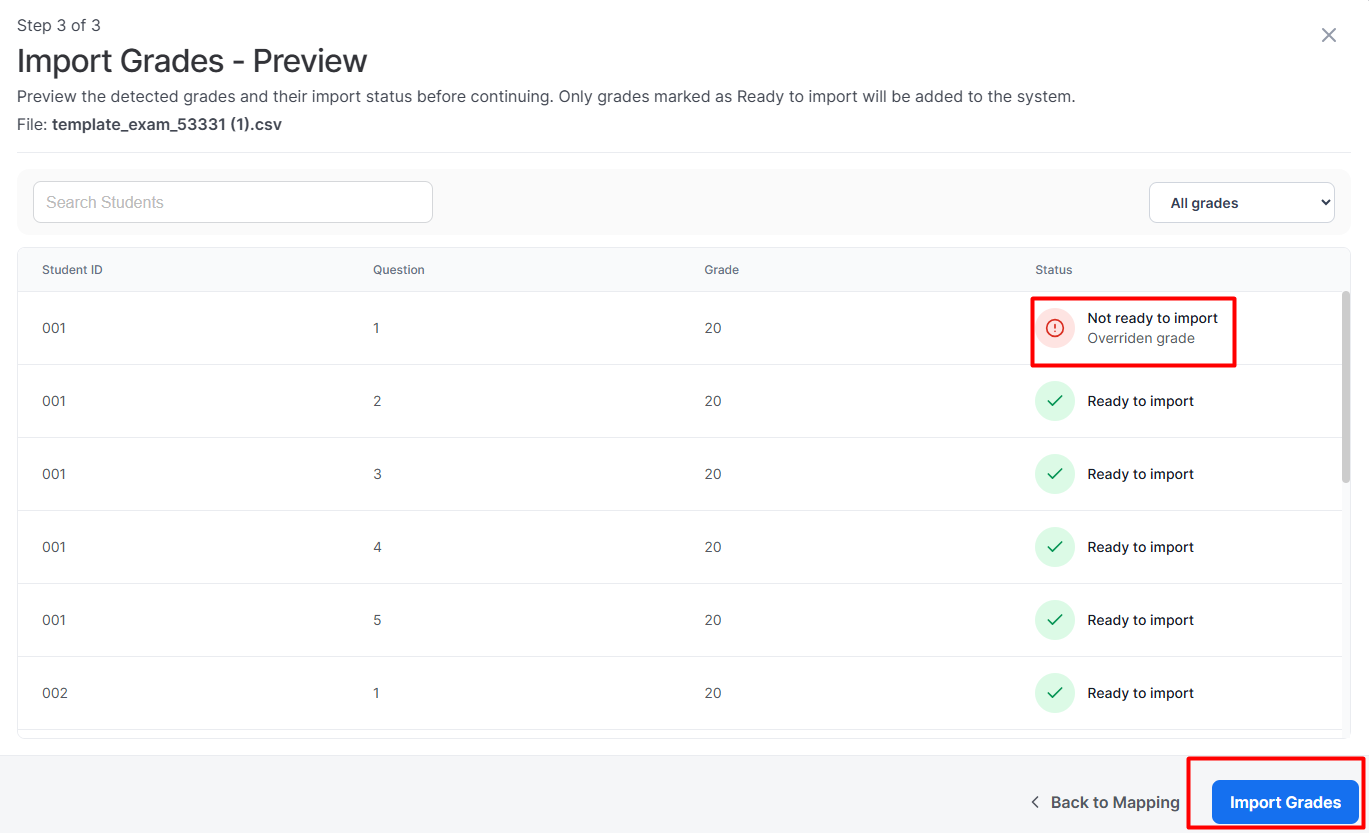
 Tips & Important Information
As mentioned, grades can only be imported to booklets that are currently in the "In Grading" status.
You cannot import grades to booklets in "Graded" status (booklets whose grades have already been approved) or in "Not Graded Yet" status (booklets without any grade, where a grader hasn't even opened their grading screen).
Therefore, we strongly recommend:
 Delay Approval: Do not approve a booklet's grade before merging the imported grades. Only approve them afterward. Note that you can approve grades for all booklets at once (see guide here).
Handling Open-Ended Exams: If your questionnaire contains only open-ended questions, initially, all booklets will be in "Not Graded Yet" status (which blocks importing). To change their status to "In Grading", simply enter the grading screen of the first booklet and page through the rest. This action shifts all of them to "In Grading" and enables the grade import.