
System administrators can block or allow third-party software processes for individual examinees. This is in addition to the restrictions defined at the exam level and through automation rules.
Steps to Follow
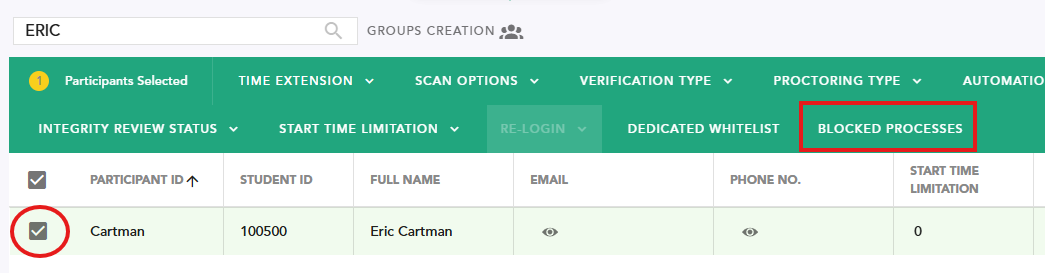
- 1Select the examinee: Check the box next to the relevant student.
- 2Open processes: In the action bar that appears at the top, click on "Blocked Processes".
- 3Configure permissions: In the processes window, search for the specific process and set it to either "Allowed" or "Blocked".
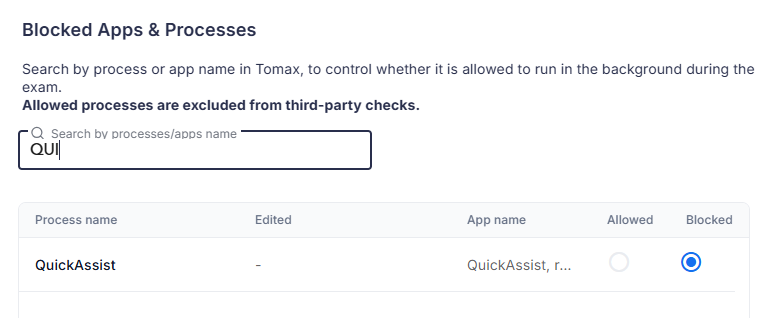
- 4Save: Click "Apply" to save your changes.

Audit Log: After the change is applied, the system will log the action, including the exact time it was made and the user who performed it.

Reset to Defaults
If you wish to reset the settings back to their original state, repeat the steps above and click "Revert to exam default".
Please note: This action cannot be performed on multiple examinees simultaneously. You must select only one examinee at a time.