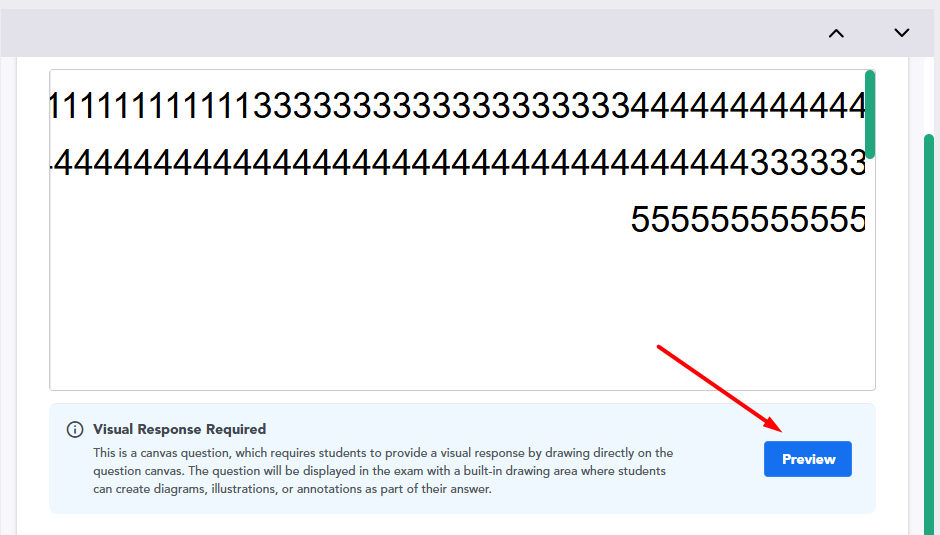
A "Canvas" type question allows students to answer directly on top of the question you create.
For example, they can circle a mistake in a formula, complete a flowchart, mark areas on a graph, or add corrections to an image.
You create an open question with text/image/table, and the examinee marks, draws, and writes on the content itself - without a separate answer box and without external tools.
The response is saved automatically and transferred for grading in TomaGrade, so the marking itself is the answer.
How do we add a canvas question?
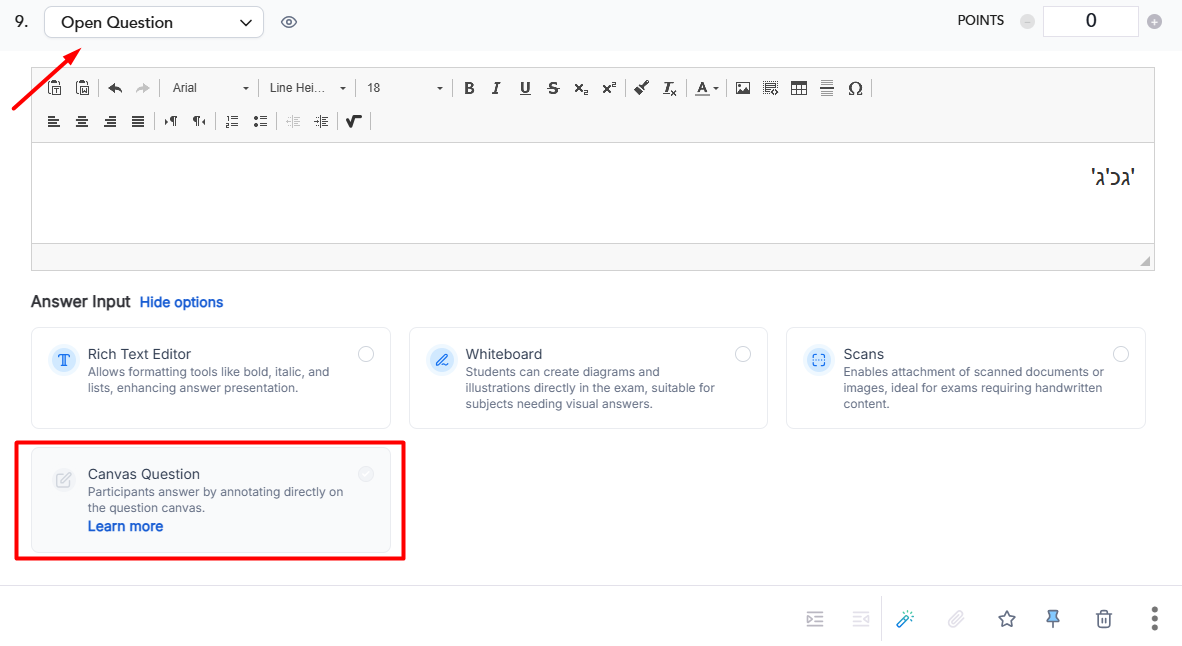
In the exam editor, add an open question.
Then, under "Answer input", select "Canvas Question":
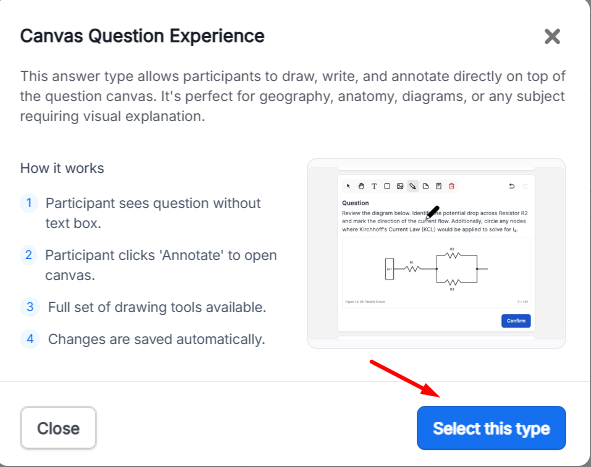
A window will open explaining the canvas question. Click "Select this type" to select this question type:
Please note: In Canvas questions, a warning has been added when the question content is larger than A4 and will be cut off for the participants (you should check the preview using the eye icon before upload the exam):
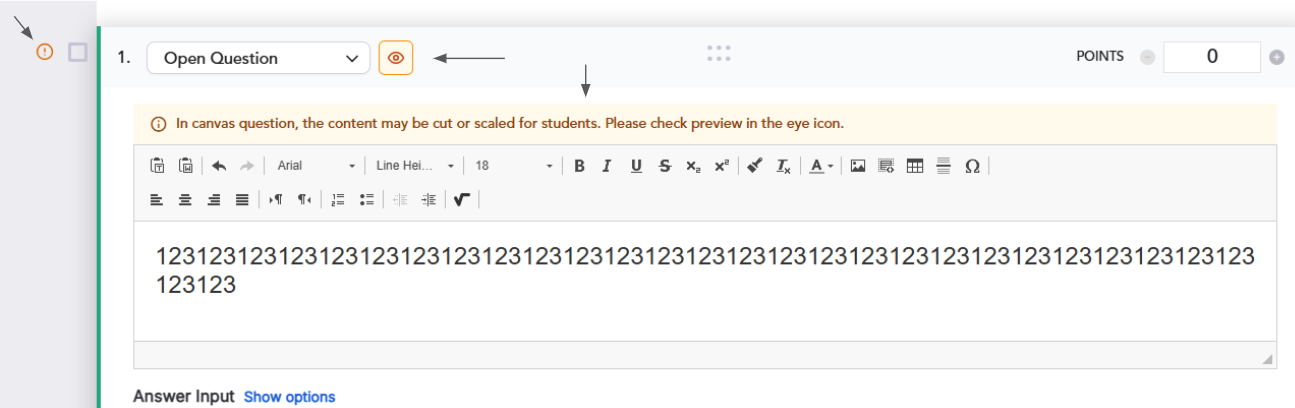
Note: In the exam editor, when creating a Canvas question, the text editor displays a preview that is not identical to what the participants see.
A preview mode has been added to the editor for Canvas questions to show lecturers how participants will see this question: