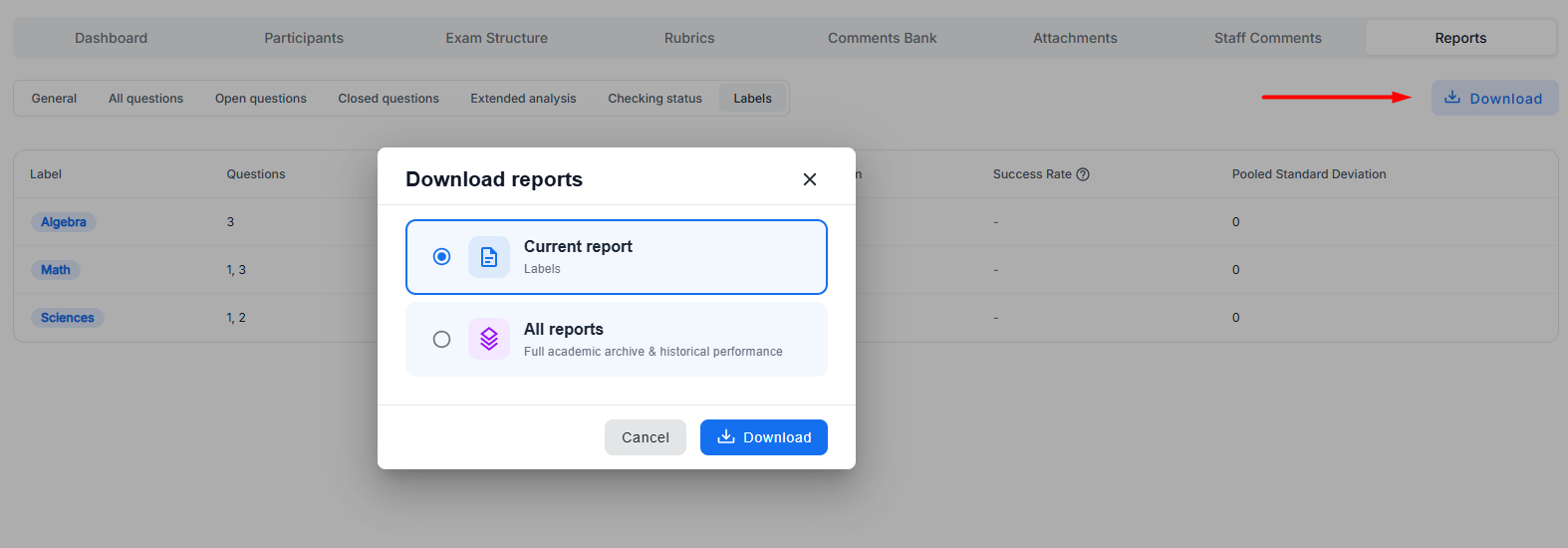
Using labels allows us to add labels to each question and get statistics based on the added labels in a new report.
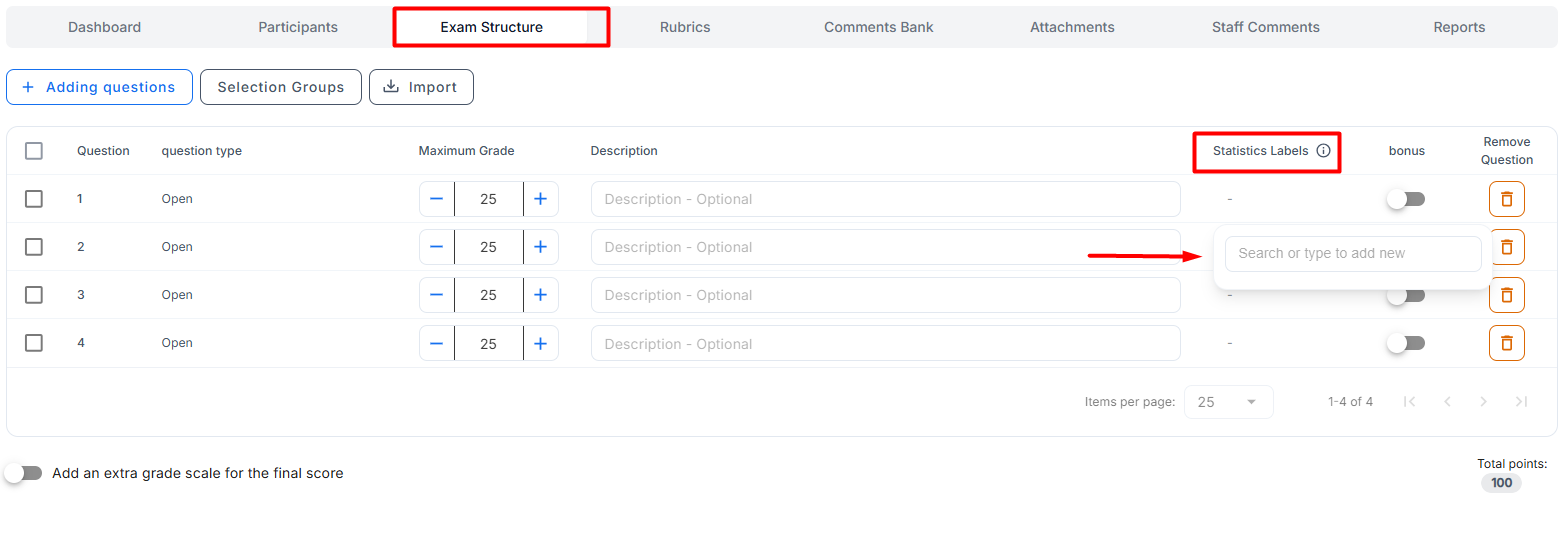
To add labels to a question, you need to be in the "Exam Structure" tab, and under the "Statistics labels" column, click on the cell of the question to which you want to add a label. A window will open where you can search for an existing label or type a new one:
After adding new labels, they will appear under the "Statistics labels" column:
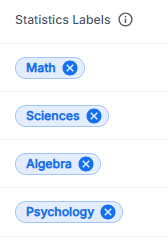
* A label can be removed from a question by clicking the "X" next to it.
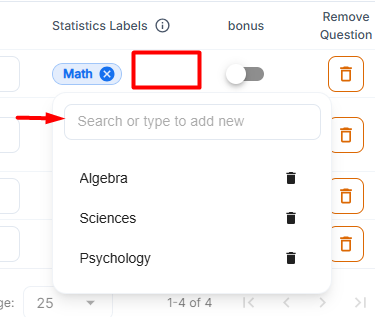
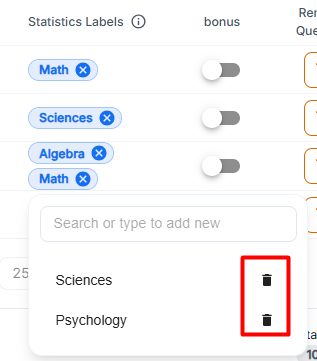
When clicking on the cell of the label we added (an empty spot), a list of other labels that can be added will open (ones that have already been added to other questions), and you can add them to this question (by clicking on them), as well as create new labels/search for existing labels by typing in the cell:
*
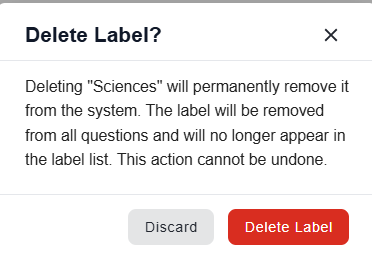
Additionally, when clicking the trash can icon next to a particular label, the label will be deleted from all questions in the exam and will no longer appear in the label list:
When finished creating labels, click "Approve" at the bottom of the screen to save the changes:
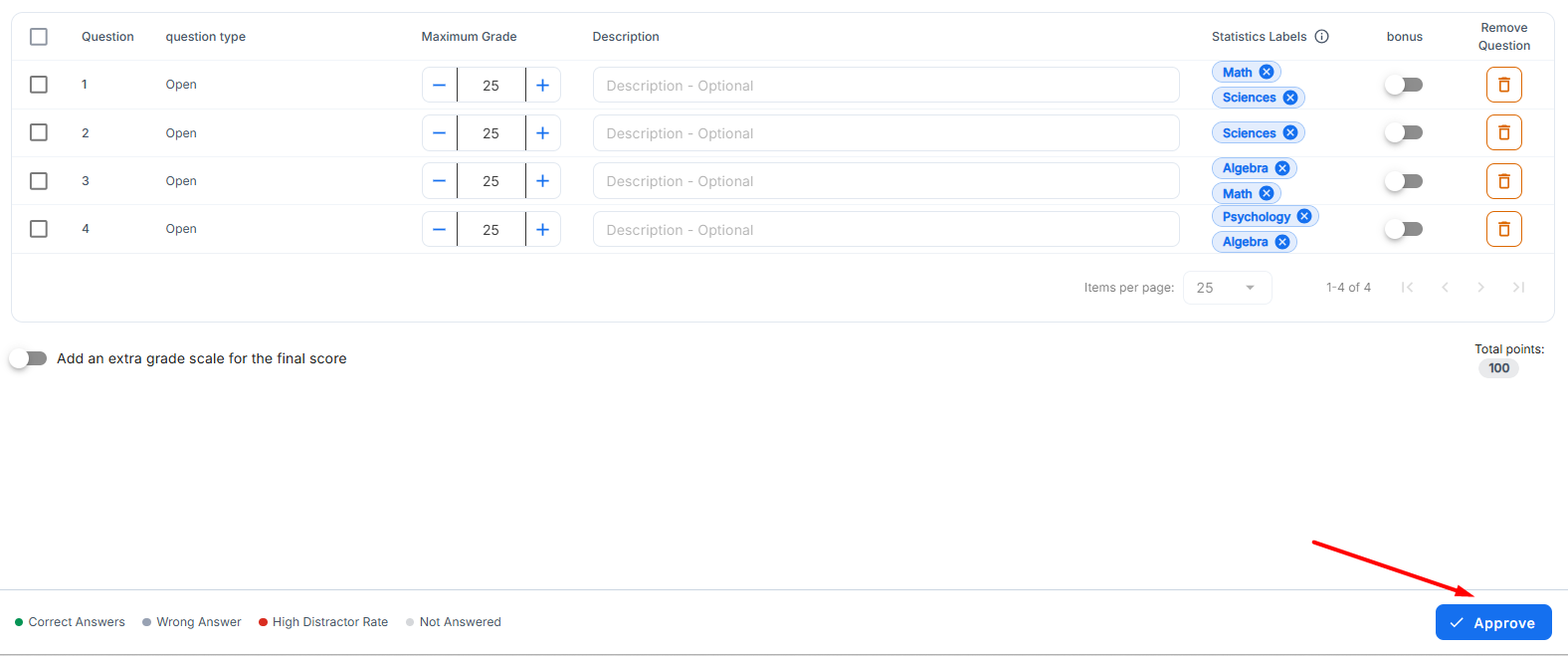
After creating the labels and reviewing the questions in the exam, we can go to the reports tab and select the "labels" report:
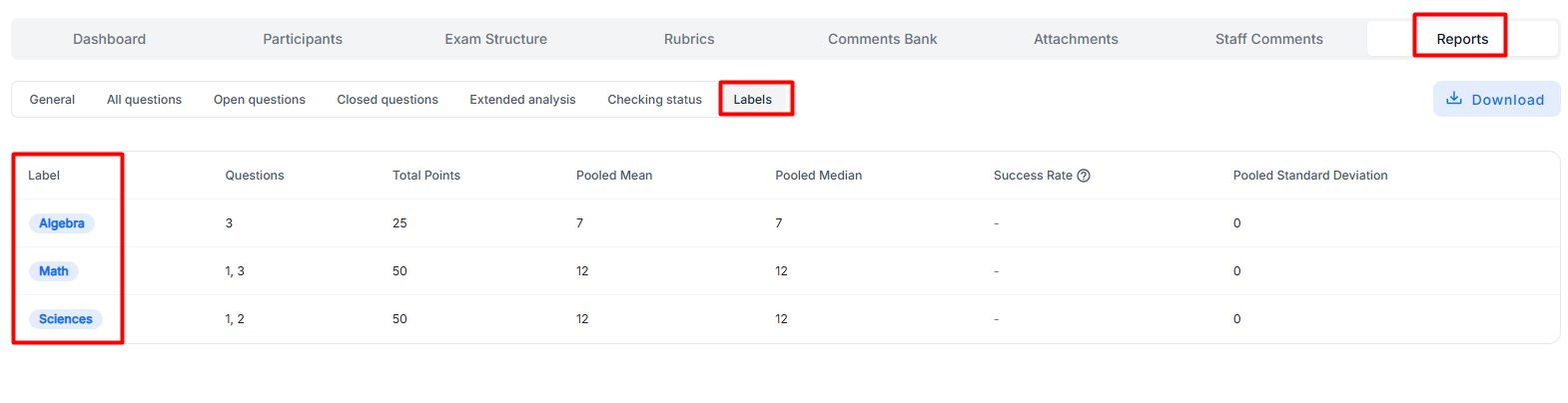
In this report, we can see all the labels we added, which questions they were added to, the total points given to these questions in the exam structure, pooled mean, pooled median, success rafe(for closed questions only), and pooled standard deviation.
As with other reports, we can click the "Download" button to download the current report or all reports in the exam: