
In the "assembly line" of the exam process in the TomaSafe, after its upload/creation, it will usually move to an approvals status that is not visible to the lecturer.
Instructions:
If you wish to view an uploaded exam, you can do so in the following way:
1. Go to the "All exams and questionnaires" view located under "General":
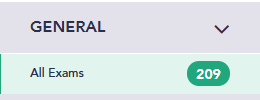
Here you can see all the exams that belong to us, regardless of what status (stage) they are currently in.
Important! "All exams and questionnaires" is a view mode and not a status - therefore actions cannot be performed in it. Performing actions is only possible in the relevant status.
2. Locate the desired exam by using the filters at the top of the table columns:

3. Make sure we clicked on the relevant record (highlighted in gray) or selected it by clicking the lock icon.
Click the eye icon:
A pop-up will open on the side of the screen allowing you to see a preview of all the files associated with the exam:
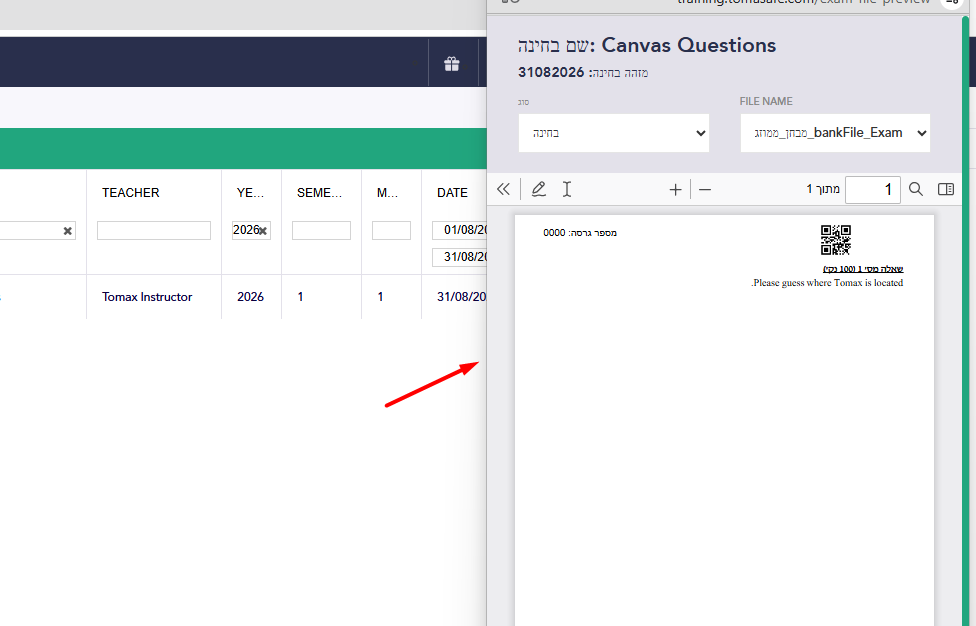
If a pop-up does not open, make sure your browser is not blocking pop-ups
From the files menu, select the exam (usually the name starts with bankFile_Exam, but you can always view the preview to decide):
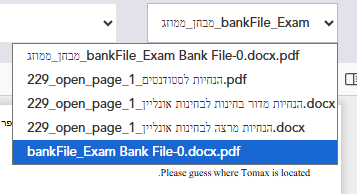
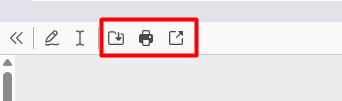
Open the view in full screen and you will be able to view the content and even print it or download it as a PDF:
...And what about online exams?
For online exams, a PDF file is also created as a preview and the content can be viewed in the same way.
Online exams also allow a preview directly in the monitor -- only if a proper approval process has already been completed --
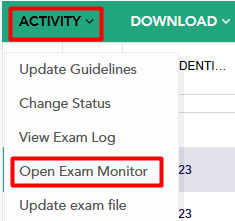
You can click on the record and in the "Activity" menu, select "Open Exam Monitor" - a new tab will open with the exam monitor.
In the exam monitor, go to Exam Preview, where you can view the exam:
