
A new feature has been added today (Relevant for online exams only) that allows you to add grade/regular comments on highlighted text.
You can add/deduct points from the answer as long as you stay within the question's point range.
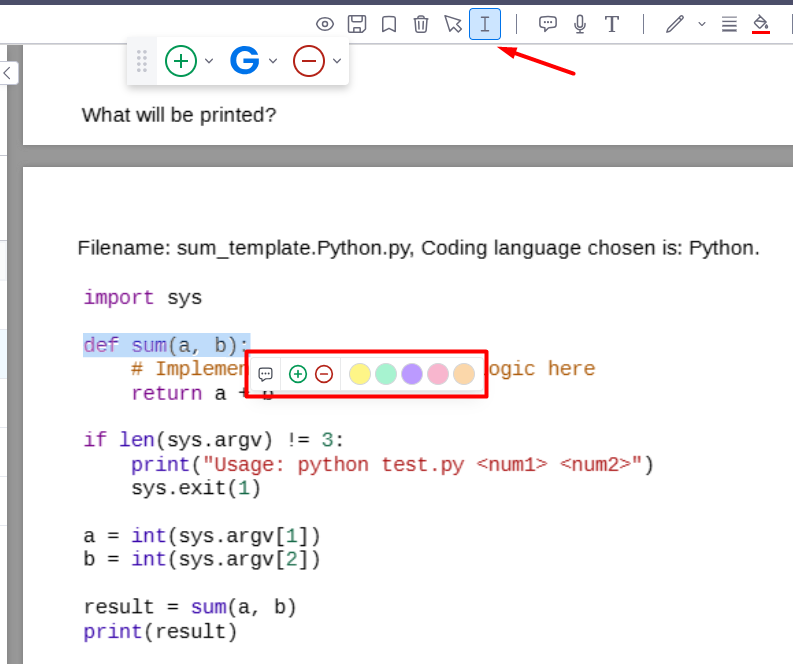
To use this tool, click on the text selection icon in the top toolbar in TomaGrade.
Then, select the desired text and a small toolbar will appear that allows you to choose the desired text color, deduct points from the answer, add points to the answer, and add a grade comment that will be attached to the question's grade (or a regular comment).
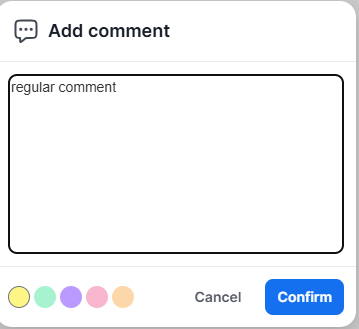
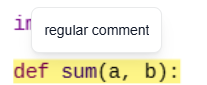
- If you add a regular comment (by clicking on the comment icon), a window will open where you need to enter the comment content and choose a highlight color (at the end, click Confirm):
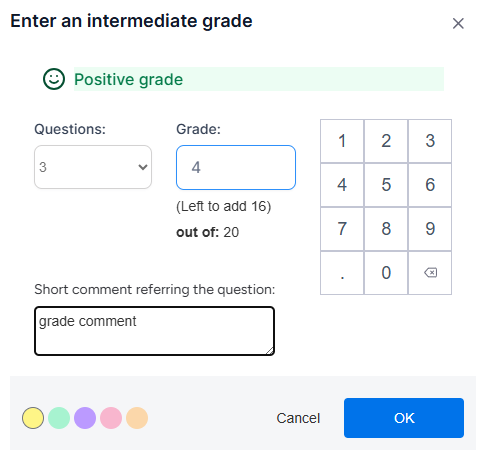
- If you choose to add/deduct points from the answer (by clicking the "+" or "-" icons), an "Enter an intermediate grade" window will appear where you need to enter the grade you want to add/deduct from the answer, a text box to add a comment that will be attached to the grade, and choose a highlight color (at the end, click OK):
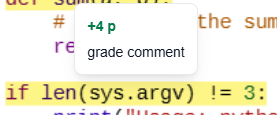
Important notes:
* The tool can be used with the keyboard shortcut alt+h.
* Double-clicking on the icon will set its highlight.
* Each text segment should have only one marking!
If you make an additional marking, the previous marking will be deleted.
* After you create a marking, its "type" is determined, meaning it's either a "marking with grade" or a "regular marking".
* If you want to edit the comment you wrote, exit the markup tool, double-click on the markup, and edit the note. . The window that opens will correspond to the marking type (either an "Enter an intermediate grade" window or a regular "Add comment" window).
* If you didn't choose a highlight color, the default color will be yellow.
* If you want to delete the highlight and comment, click on it and press delete on the keyboard or use the trash can icon in the top toolbar in TomaGrade.