
⚠️ Please note!
The exam time can only be changed up to half an hour before the original start time. After that, the change will not take effect.
Steps to perform the change:
1. Log in to the TomaSafe system.
2. Select the relevant exam using the lock icon

3. The information panel will appear on the right side:
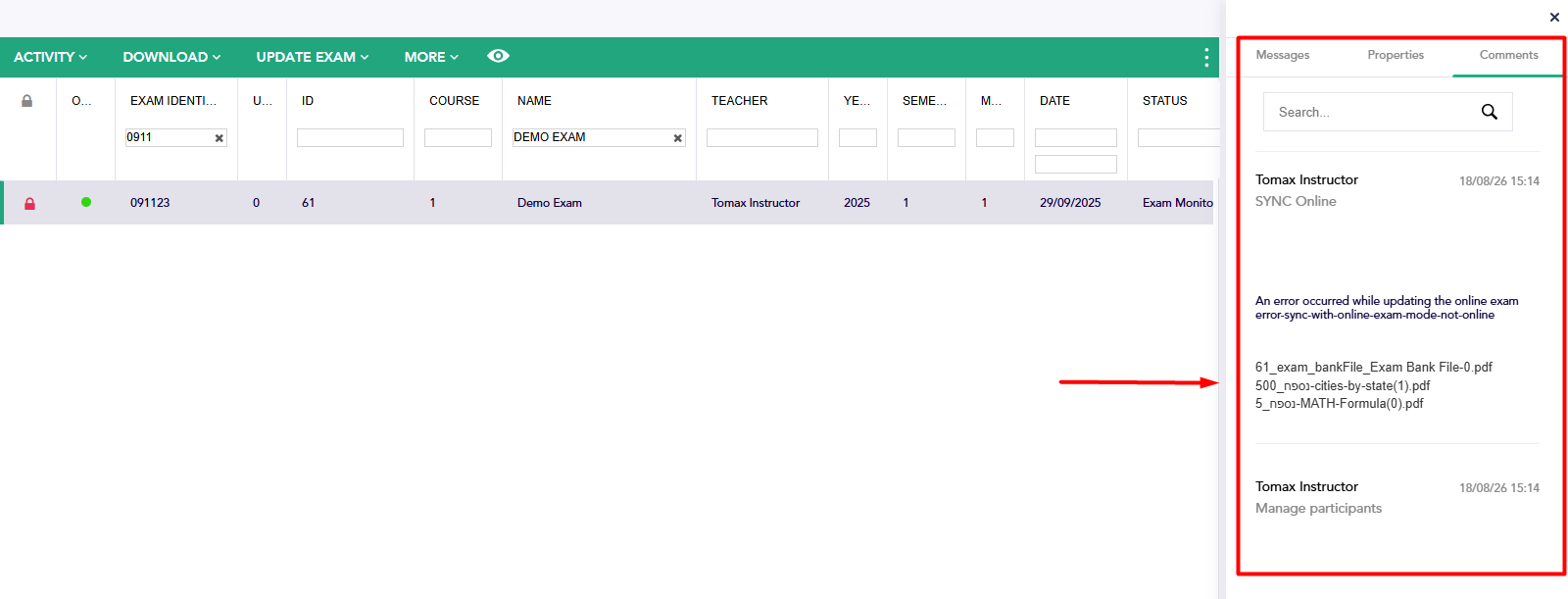
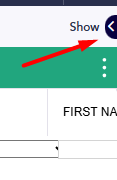
* If the panel does not appear, click the "Show" arrow in the top right corner:
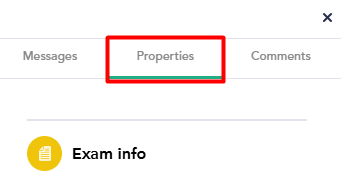
Click on the "Properties" tab:
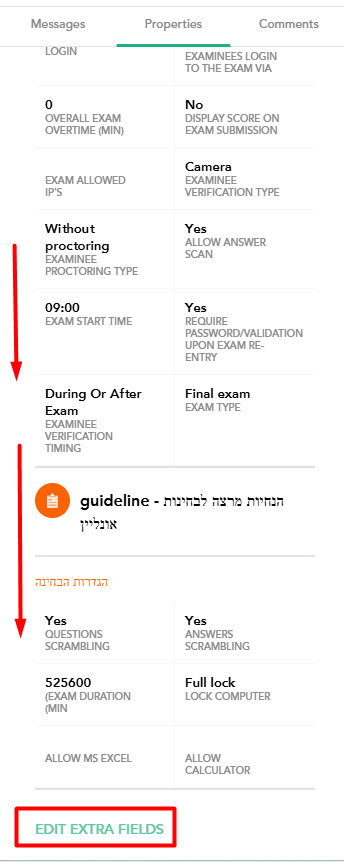
4. Scroll down and click on "Edit Extra Fields":
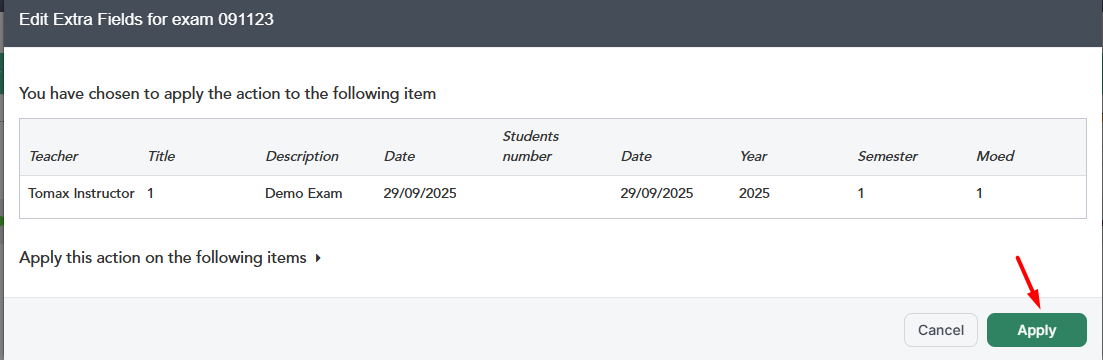
* If an action on record window pops up, click "Apply":
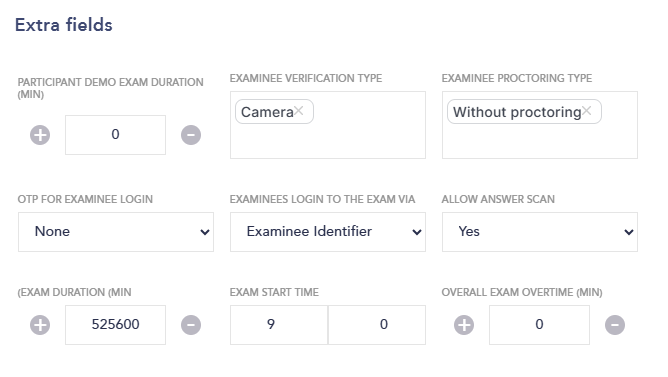
5. The Extra Fields window will open:
⚠️ Please note!
The window contains many settings, do not change them! An uncontrolled change may impair the proper execution of the exam.
Search for the field "Exam start time" and change it to the desired time:
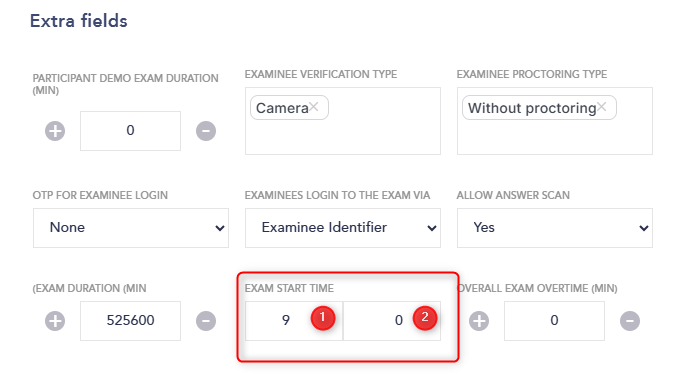
(1) Hours, (2) Minutes
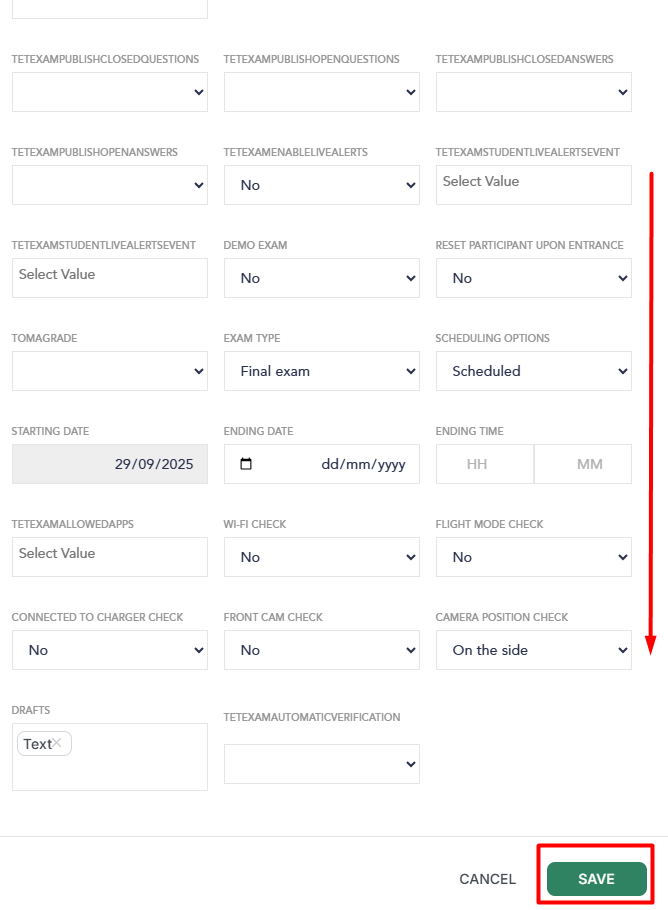
6. Scroll down and click "Save":
7. You must ensure the process was completed successfully:
- Open the exam monitor. If the exam time was changed, the process was completed successfully.
- If not, select the exam record again and check the "Comments" tab in the side panel. There might be an error message explaining why the process failed. Consult with Tomax technical support if necessary.