Sharing allows the lecturer to grant permission to other faculty members to perform the upload process for an exam record assigned to them and/or to allow an additional lecturer to log in to the exam monitor.
- The exam must be shared only before starting the upload process - sharing does not work retroactively .
- Sharing does not allow collaborative work during the exam editing stage (if you are editing the exam in the online editor).
Sharing the exam:
- Select the exam (lock it by clicking the lock icon).
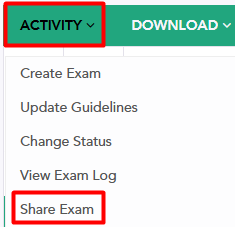
- From the "Activity" menu, select "Share exam":
- If there is a setting for grouping exams, an "Action on multiple exams" window will appear allowing you to share multiple exams simultaneously. For more information click here
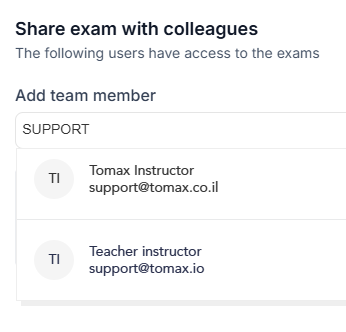
- In the sharing window, look for and select the faculty members you want to share the exam with:
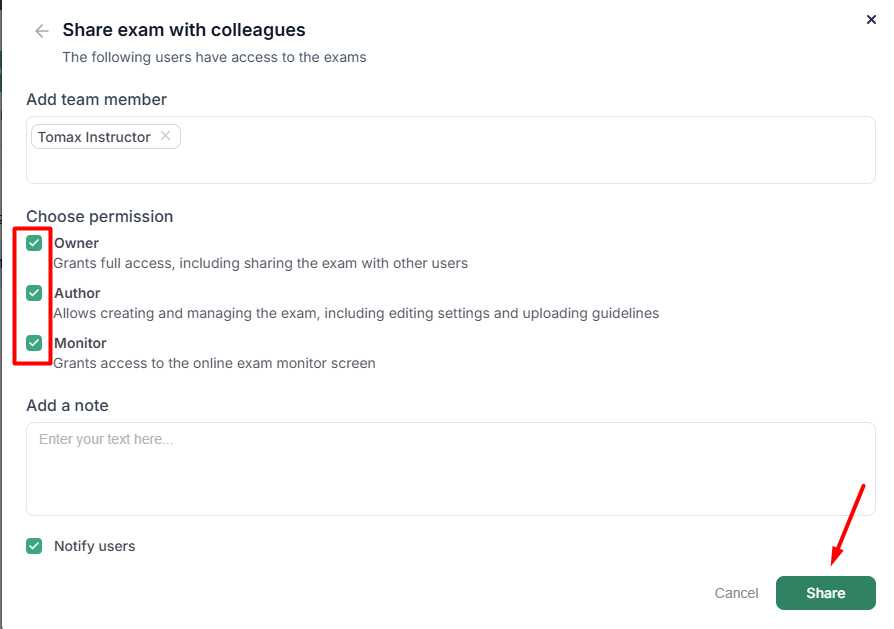
- Select the appropriate permission* for the faculty member you intend to share the exam with by clicking the corresponding checkbox, and finally click the share button:
* Explanation of permissions:
Owner Permission - Grants full access, including the ability to share the exam with additional users.
Author Permission - Allows creation and management of the exam, including editing settings and uploading instructions.
Monitor Permission - Grants access to the exam management screen (monitor) during online exams.
Canceling sharing
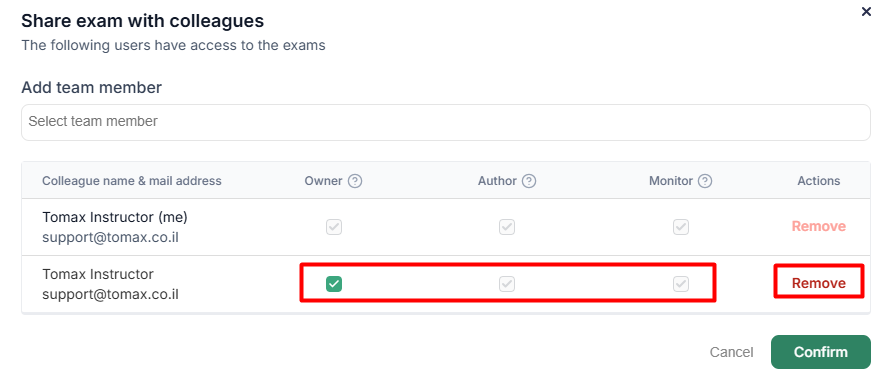
In the sharing window, you can delete the shared faculty member by clicking "Remove" and change user permissions by selecting the appropriate checkbox: