
AI-based grading automatically evaluates the examinees' answers according to a grading rubric and generates verbal and numerical feedback for each question.
Please note! The tool is only available for Tomax online exams, and only when using the rubrics tool. Also, the tool is currently available only for the course lecturer (the tool is not available for grading partners as of today)
Table of Contents:
- 1. Activating automatic grading
- 2. Setting grading parameters
- 3. Grading process
- 4. Reviewing answers graded by AI
1. Activating automatic grading
First, you must create a rubric for the exam.
After creating the rubric, click the "AI grading" button located at the bottom right of the check exam screen:
A window will open for selecting the grading method. The option "Grade using gradi rubric" will be checked. Click "confirm":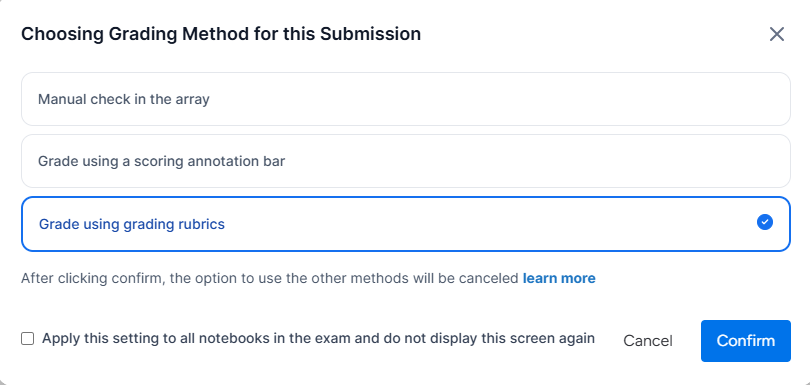
2. Setting grading parameters
Adjust the feedback characteristics:
1. Grading strictness - The higher the strictness, the stricter the feedback will be, expecting a more precise answer. At a lower strictness level, the AI will be more forgiving of answers that are not entirely accurate.
2. Target audience (student level) - Selecting the expected knowledge level of the examinee.
3. Scope of grading - Whether to generate feedback for all questions in the exam or only for the current question.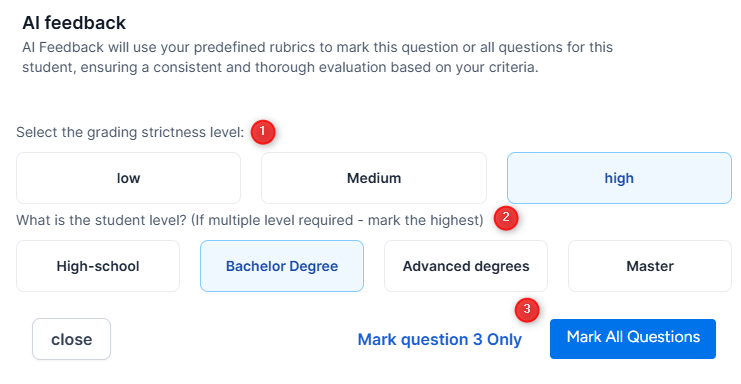
3. Grading process
After setting the parameters, the system will start evaluating the grade of the question(s) based on the defined rubrics. Please wait (patiently) until the process is finished. The grading may take several minutes depending on the amount of content and the defined parameters.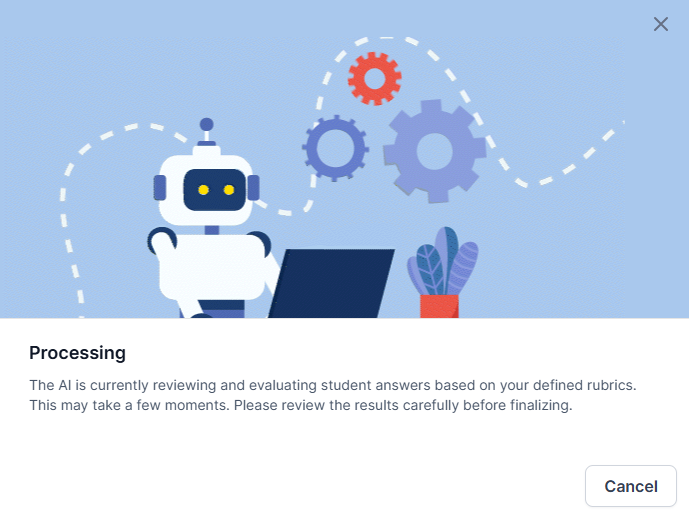
Once the process is complete, a message will appear indicating that the evaluation has been successfully completed: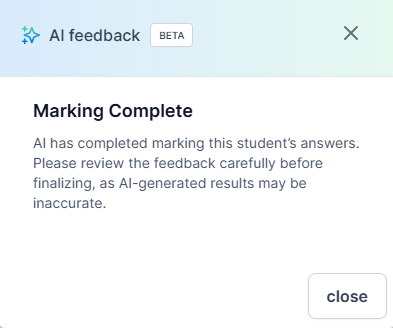
4. Reviewing answers graded by AI
How to identify an AI-graded answer?
On the check exam screen:
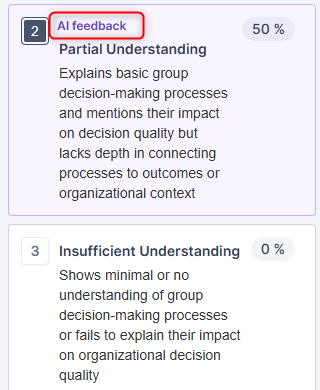
An answer graded by the tool will be highlighted and will display the text "AI feedback":
On the main screen:
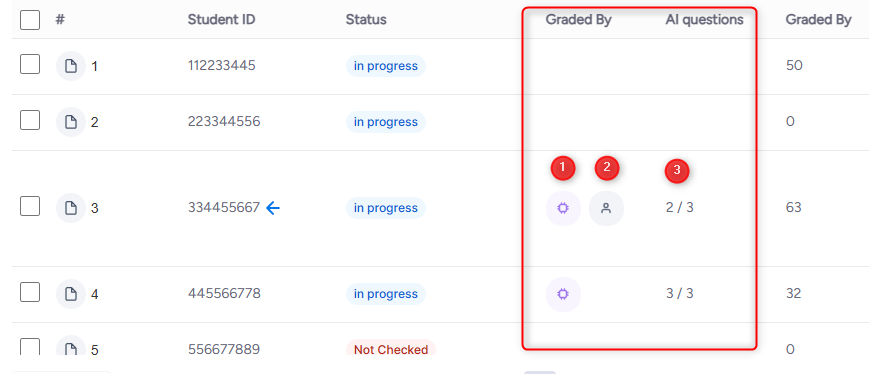
1. A purple icon indicates that AI grading has taken place for the examinee.
2. A "person" icon next to the AI icon indicates that "human" grading has also taken place for some of the questions, or that manual changes were made after the automatic grading.
3. Total number of questions graded by the AI.
Reviewing AI feedback
After the automatic grading, you must review the feedback and grade given by the AI.
The following example shows the grading performed for question 3:
(Click to enlarge)
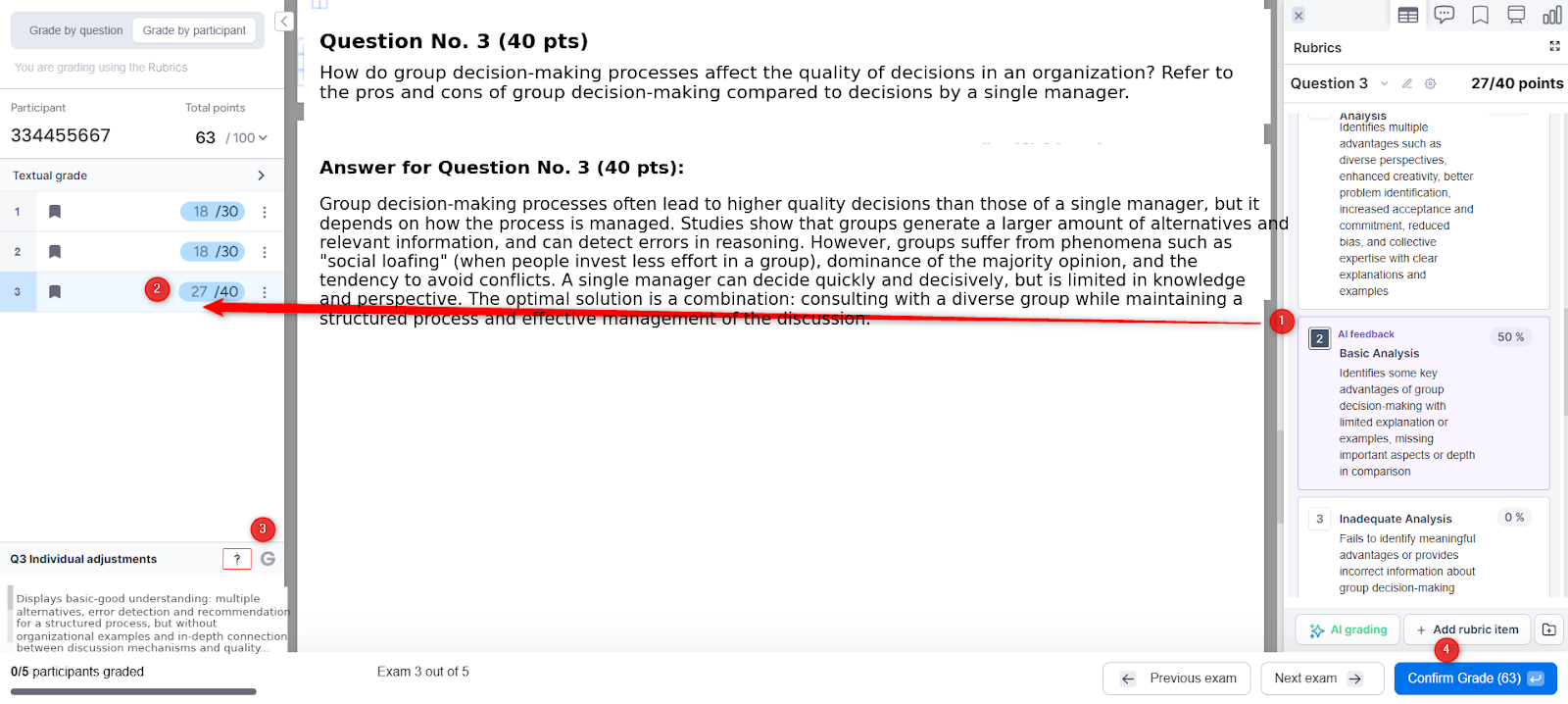
1. The appropriate grade level was selected and an indication was added that the selection was made using AI. (You can change this at any stage according to your judgment by clicking on a different grade level).
2. A numerical grade was obtained according to the rubric.
3. Constructive and reasoned feedback was added. The feedback will appear to the student in the summary report for the exam. (You can delete/edit the verbal feedback at any stage).
4. The AI does not confirm a final grade for the examinee. Please note that even if you chose for the AI to grade all questions, it does not confirm the final grade for the examinee; you must do this manually to allow you to perform the appropriate review.
* Please note that the automatic grading is performed for a single examinee and not for all examinees.