Using Artificial Intelligence (AI) to create grading rubrics can offer time savings, improved accuracy, personalization, and many other benefits.
At this stage, the use of AI tools to create grading rubrics is available for online exams only and can be implemented for open questions only.
* Please note that the tool is currently available only for the course lecturer (the tool is not available for grading partners as of today)
To begin the process of creating the rubrics, click on the "AI Rubric" button located at the bottom right side of TomaGrade.
* You can create an AI rubric from any tab you are on (Participants, Exam Structure, Rubrics, etc...).
It is important to note that if we click on "AI Rubric" at this stage - the rubric will be created for all the questions in the exam.
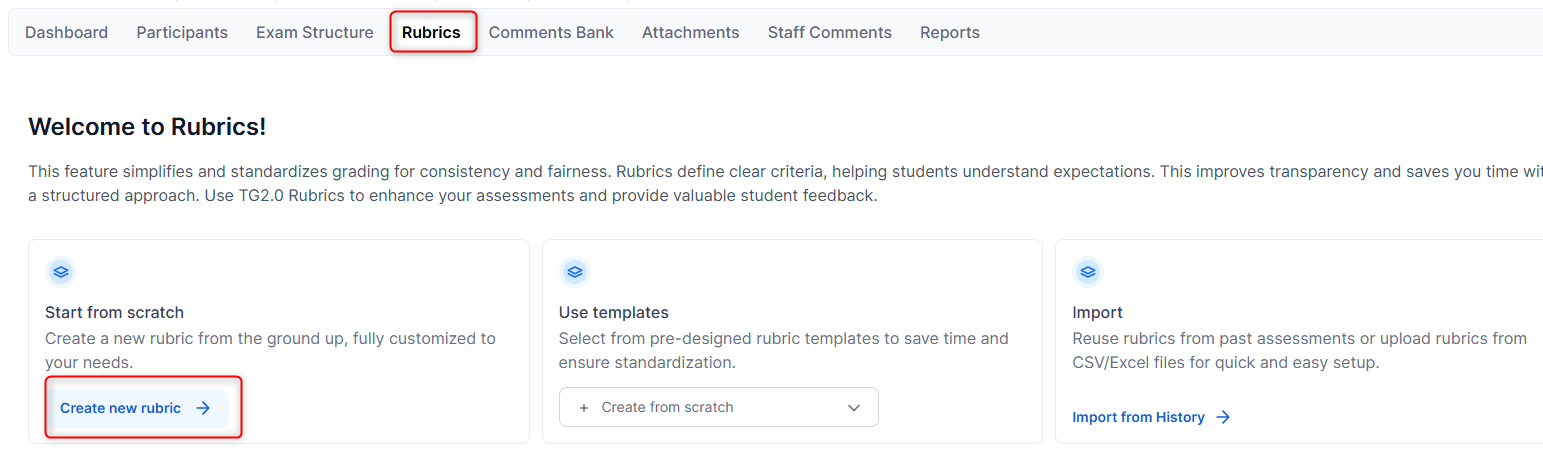
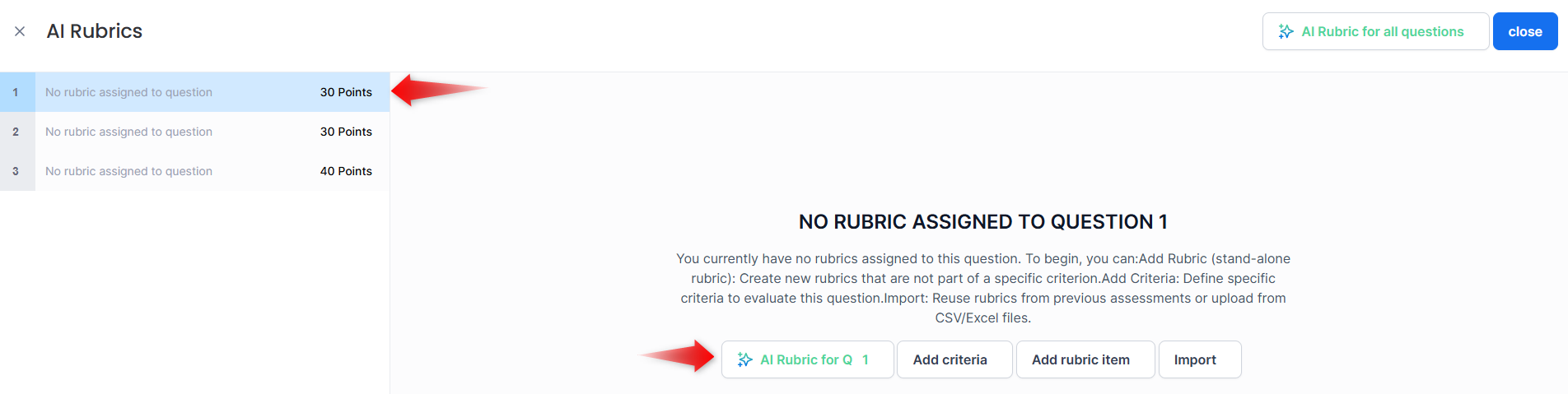
If we want to create a rubric for a specific question, we will go to the "Rubrics" tab -> click on "Create new rubric" -> select the relevant question and click on "AI Rubric for Q x":
After clicking on "AI Rubric" (which appears at the bottom right side of TomaGrade), the following screen will appear where you should click on "Let's Start!":

Step 1
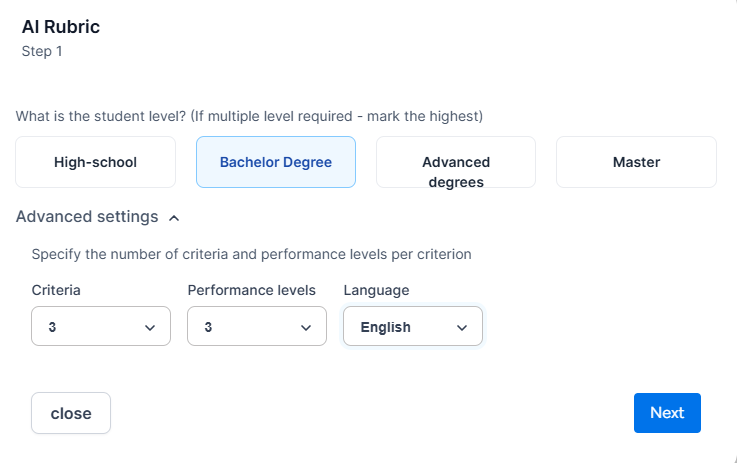
Next, we will reach a screen where we need to select the student level (the rubrics will be created based on the student level).
Under "Advanced settings", we can choose the number of criteria that will appear in the rubric, the performance levels for each criterion, and the language they will be displayed in.
Step 2
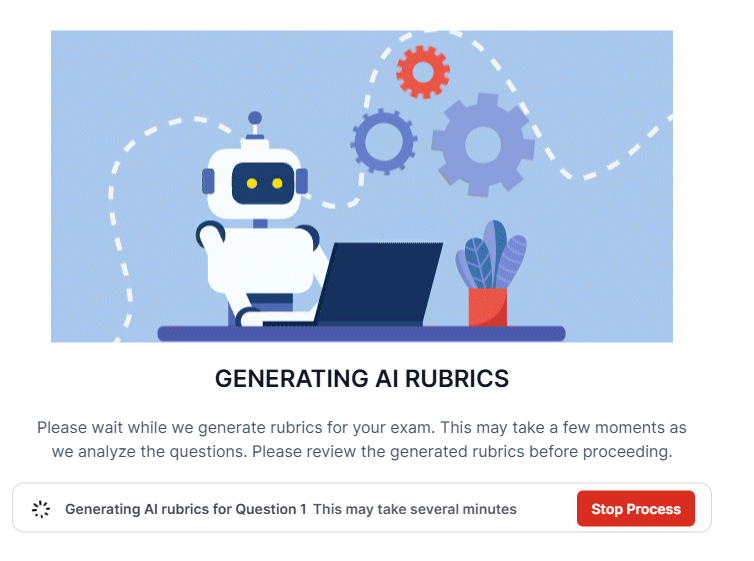
In this step, the system generates the AI rubrics according to the parameters we defined, and the process may take a few minutes.
Meanwhile, you can perform other tasks in parallel until the process is completed.
Where can we see the created rubric?
We can see the rubric created by the AI tool on the check exam screen on the right side or under the rubrics tab.
How can we know if the existing rubric was created using the AI tool?
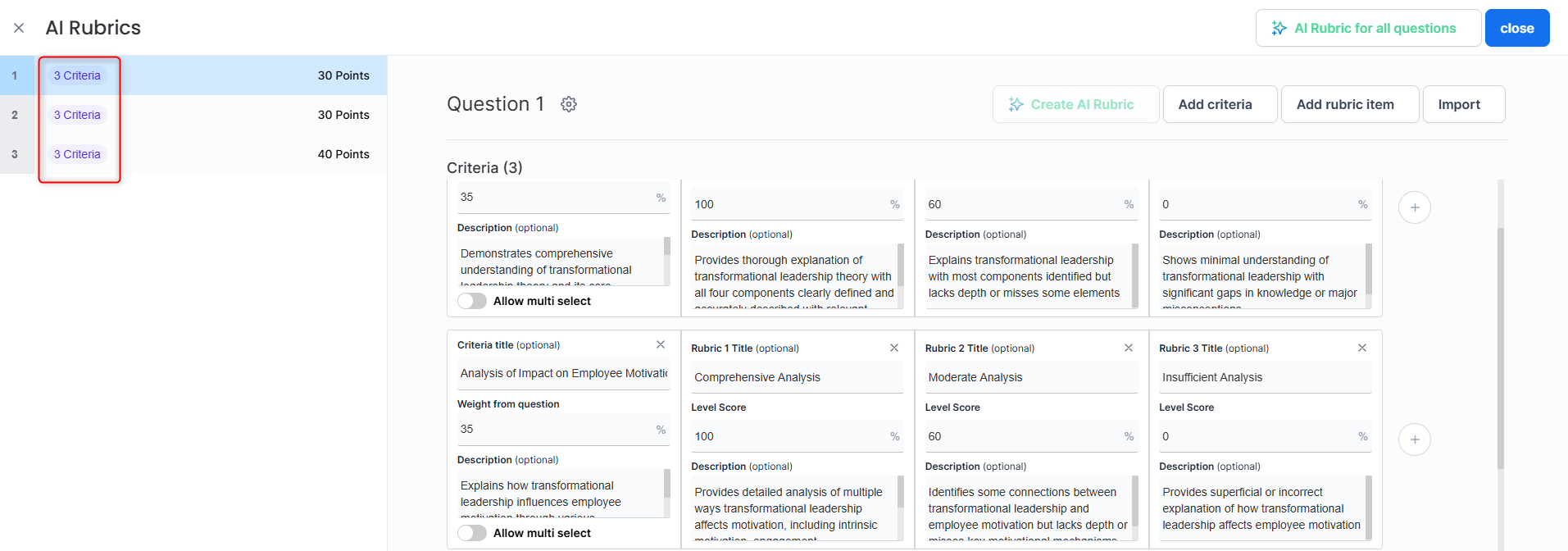
We can get an indication that the rubric was created using the AI tool once we are on the edit rubric screen, on the left side in the questions list, the text "X criteria" will appear in purple: