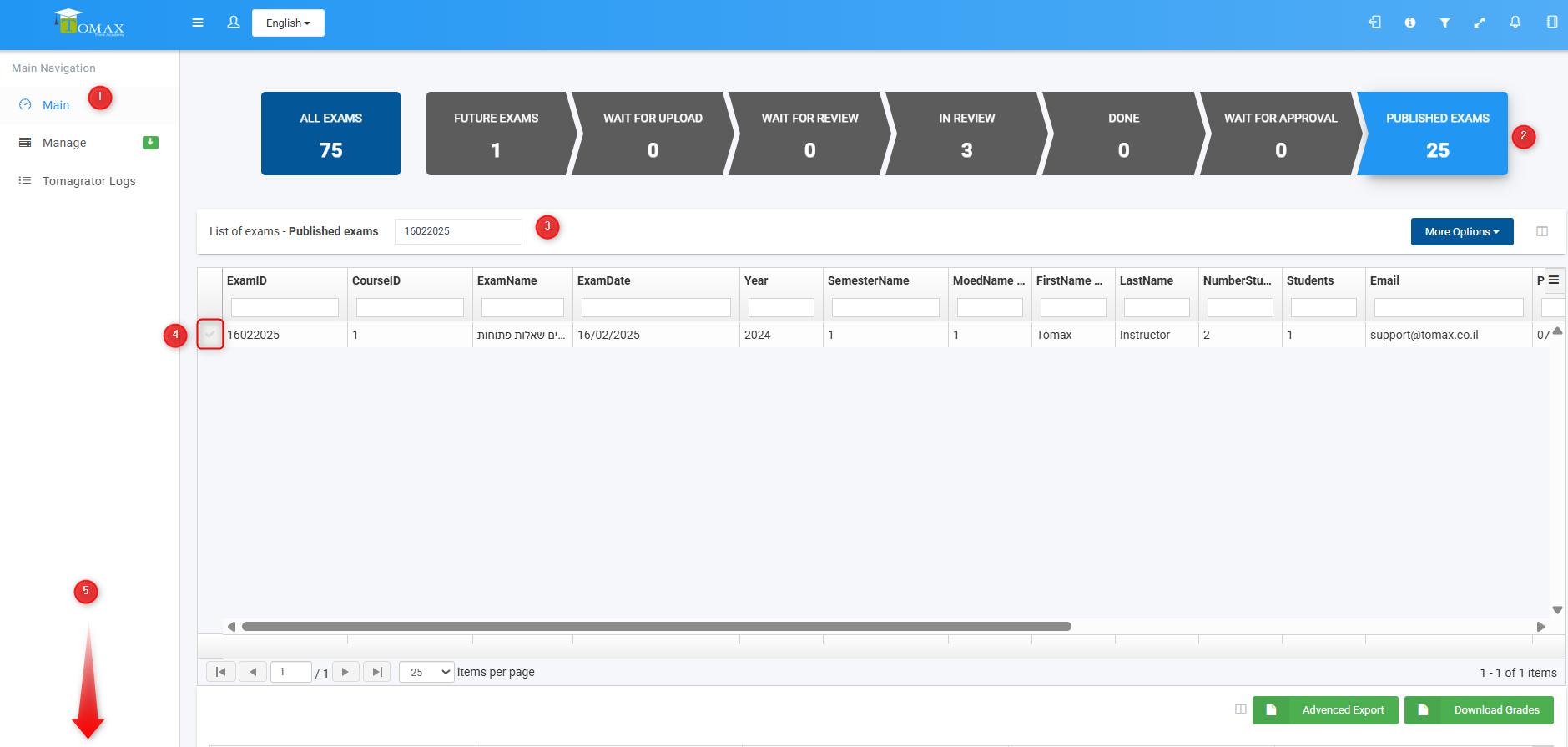
Instructions for downloading grades for a specific exam as an Excel file to your computer.
After logging into the TomaGrade dashboard:
1. Click on the Dashboard and wait for the data to fully load (this may take anywhere from a few seconds to a minute, depending on the amount of data).
2. Click on the "Published exams" filter box.
3. Enter a value to search for the exam in the search box, such as the exam ID (or search by other parameters in the filter boxes above the table fields).
4. Select the exam record.
5. Scroll down to the grades table.
6. Click on "Download grades".