
Starting today, when creating an exam, you can now select multiple correct answers for closed-ended questions. This feature helps to better assess what participants know, improves participant experience, and gives you more options to create better and fairer questions.
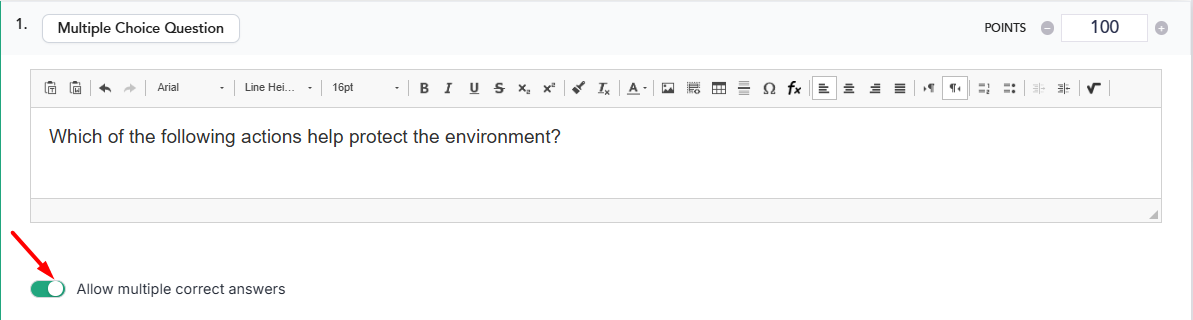
To use this feature, first select the question type "Multiple Choice Question". Then, enable the "Allow Multiple Correct Answers" option:
Once enabled, Advanced Options will appear, with 2 options:
1. Limited Answers:
- When set to "On" - Users will be required to select the exact number of answers that match the number of correct answers defined for the question. A notification will be displayed to the participant.
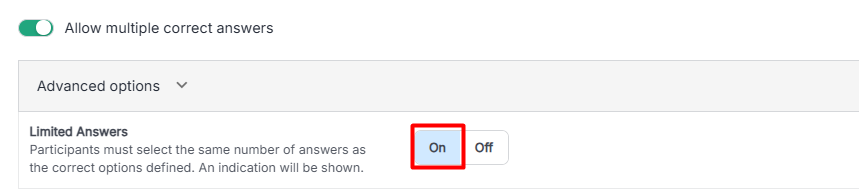
- When set to "Off" - There is no limitation on the number of answers the participant can select.

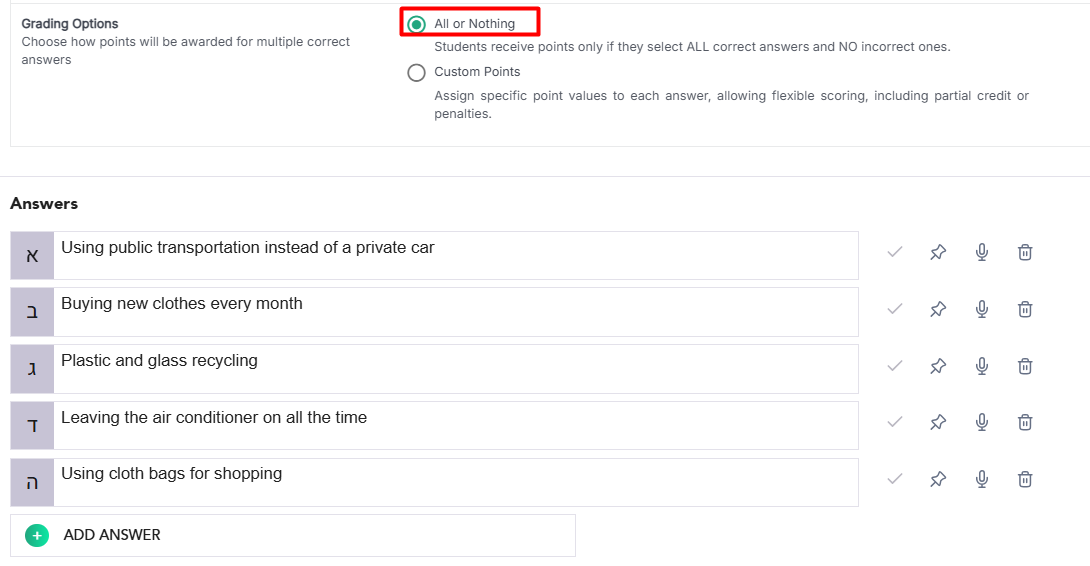
2. Grading Options - Method for calculating grades: Choose one option between "All or Nothing" or "Custom Points":
- All or Nothing - Participants will receive points only if they select all correct answers and do not select any incorrect answer. In other words, if a student correctly selects one answer but makes a mistake on the second, they will receive no points at all.
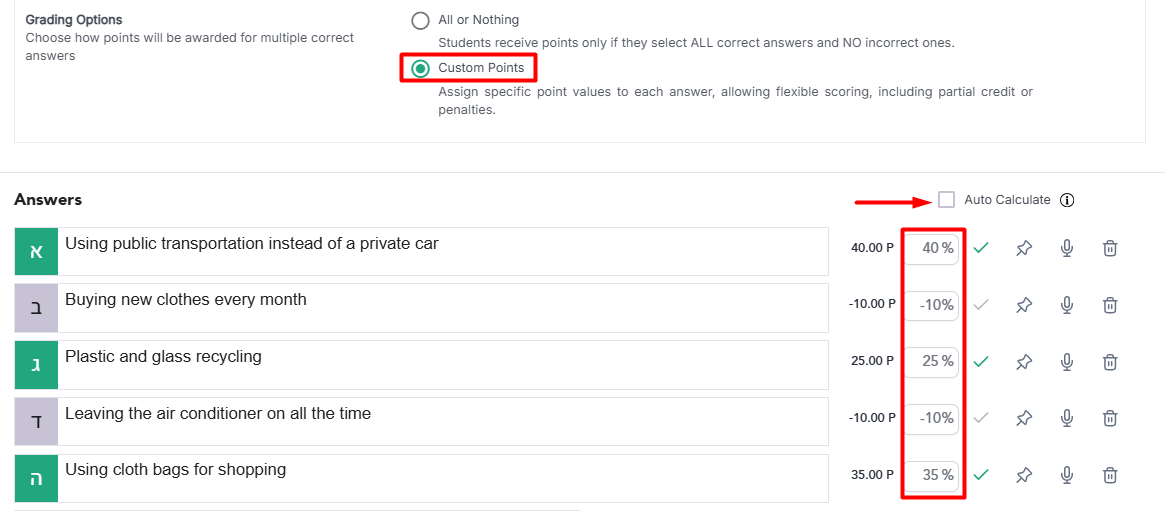
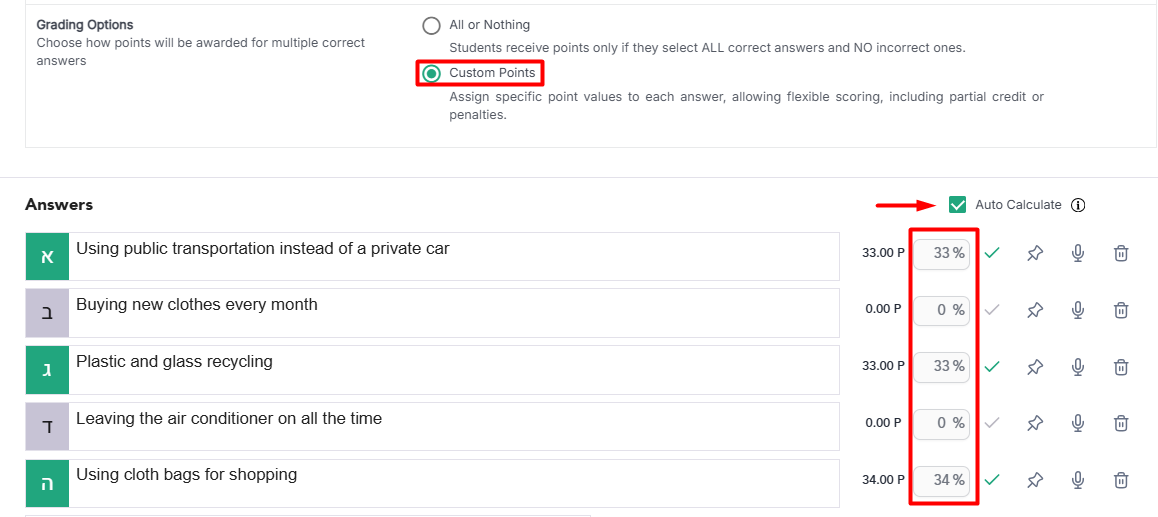
- Custom Points- Point allocation for each answer with the possibility of partial or penalty (negative) scoring. *When this option is selected, an "Auto Calculate" option will be added next to the distractors.
- When auto calculate is disabled - You can freely edit the scoring for each answer, including assigning negative scores:
- When auto calculate is enabled - Correct answers will receive equal scoring, while incorrect answers will receive a score of 0:
- When auto calculate is disabled - You can freely edit the scoring for each answer, including assigning negative scores: